Product Updates
Ava Now Reads Your Deal Emails, Routes Documents, and Drafts Replies
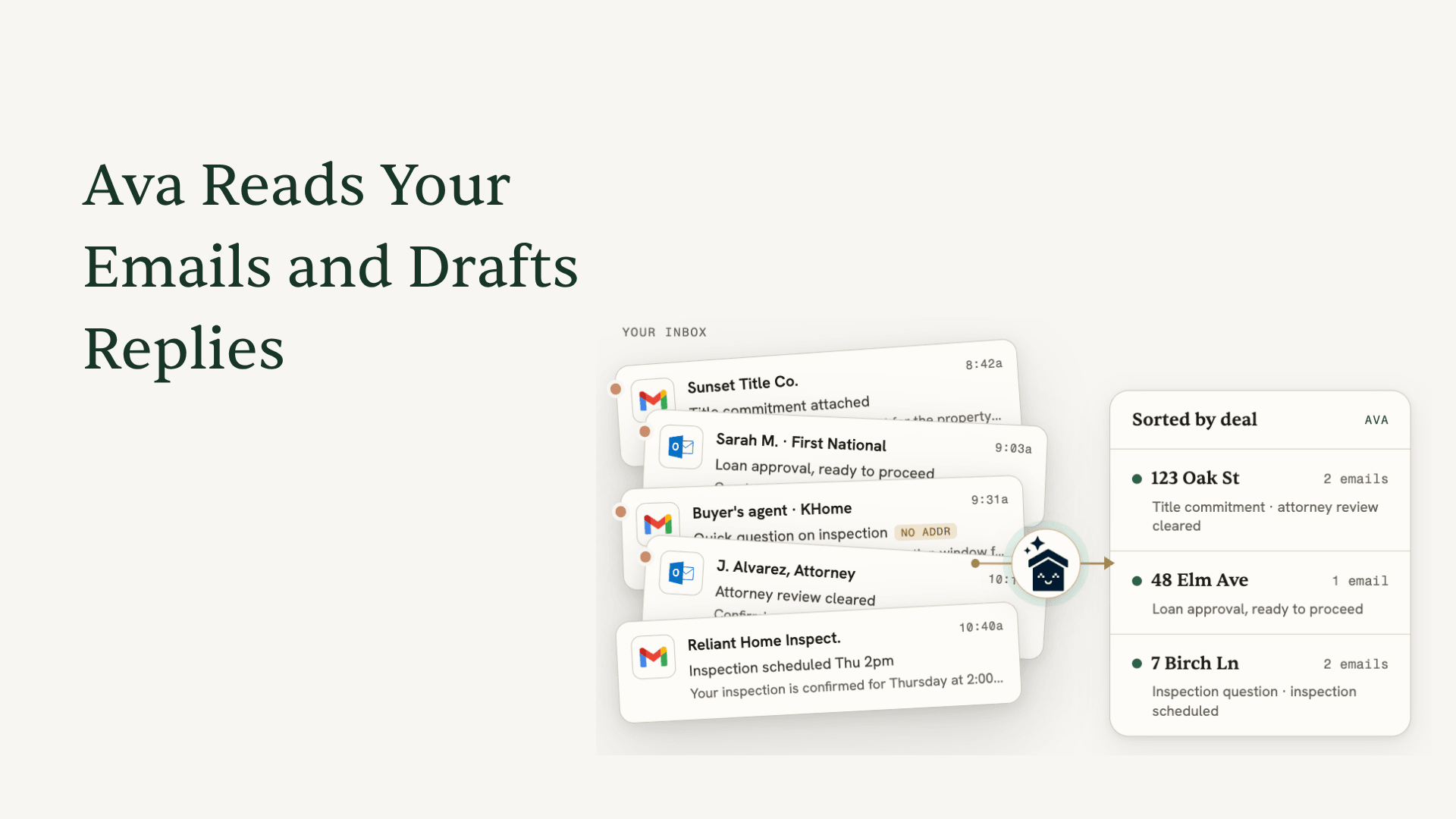
We just shipped one of the most-requested capabilities since ListedKit launched: Ava now reads your deal emails.
Not just the contracts you upload. The emails themselves, and every document attached to them.
When an inspection report arrives at 9 AM, Ava reads it, matches it to the right transaction, and files it there. By the time you open ListedKit, it is already in the deal. You did not download it. You did not figure out which of your 20 active files it belongs to. You did not navigate to the transaction and upload it. It is just there.
That is what this release does. Here is everything that shipped.

Document Auto-Routing: The Core Capability
When you connect your email account, Ava starts reading incoming emails that are tied to your active transactions. For any email that contains an attachment, she identifies which deal it belongs to based on the content of both the email and the document, then routes the attachment directly to that transaction in ListedKit.
The match is not based on the email subject line or sender alone. Ava reads the document itself, so even when subject lines are vague or the email has been forwarded three times, she still gets it right.
Once filed, Ava automatically runs a compliance scan on the document and surfaces any relevant next steps, the same way she does when you upload a document manually. Filing and compliance happen together, without any additional steps from you.
For TCs managing 20, 30, or 40 active files, this eliminates the daily cycle of download, identify, upload, repeat that has always sat between your inbox and your transaction management platform.
The Inbox Tab
A new inbox tab now lives inside ListedKit. This is where all the email activity Ava has read and processed is stored, organized by transaction rather than by the chronological inbox order your email client uses.
You can open a deal and see every email Ava has read for that file, what attachments came in, and when. If you want to verify what Ava routed or pull context from an earlier message in the thread, it is all there, attached to the deal it belongs to.
Ava reads the full email, not just attachments. That means context from lender emails, notes from agents, and updates from escrow officers all land in the transaction record, not just in your inbox where they are easy to lose.
Email Reply Drafting
Ava can now draft email replies for you.
When you need to respond to a deal email, ask Ava to draft the reply. She pulls key details directly from the transaction contract: purchase price, loan amount, loan type, key dates, party names. You review the draft, make any edits, and send it directly from ListedKit. The email goes out with your own signature, and your outbox updates automatically.
This is particularly useful when responding to lender or title emails that require specific transaction details. Instead of switching between your email client and the contract to copy numbers, Ava handles the lookup and puts it in the reply.
Smarter Chat
Ava's chat got sharper with this release. She can now answer deal questions by pulling from everything she has read for a transaction, not just the structured data in the record.
Ask her whether the inspection report came in. Ask her what the lender said about loan conditions. Ask her to summarize everything that has happened on a file in the last 48 hours. She draws from the emails and documents she has already read, so the answer is there without you hunting for it.
You can also ask Ava to check your email directly: "Ava, check my email to see if the inspection report came in for 456 Maple Ave." She will pull from your connected inbox in real time and tell you what she found.
How to Turn It On
There are two ways to connect your email. ListedKit supports Gmail and Outlook.
From the Ava chat panel (easiest): Ask Ava to read your inbox, for example: "Read my inbox and pull in the latest updates." Ava will let you know she needs access and show you a Connect button inline. Click it, select your email provider, enable email monitoring, complete the authorization screen, and you are done.
From Settings: Go to Settings > Integrations, find your email provider, and click Connect. Complete the authorization flow, grant all permissions, and Ava starts reading immediately.
If your email was previously connected to ListedKit, you still need to complete this flow. The email reading permission is new and separate from the original integration.
Once connected, Ava backfills historical emails tied to your active transactions, so she is not starting from scratch on your existing files.