Product Updates
Ask Ava to Bring In Documents from Dropbox and OneDrive
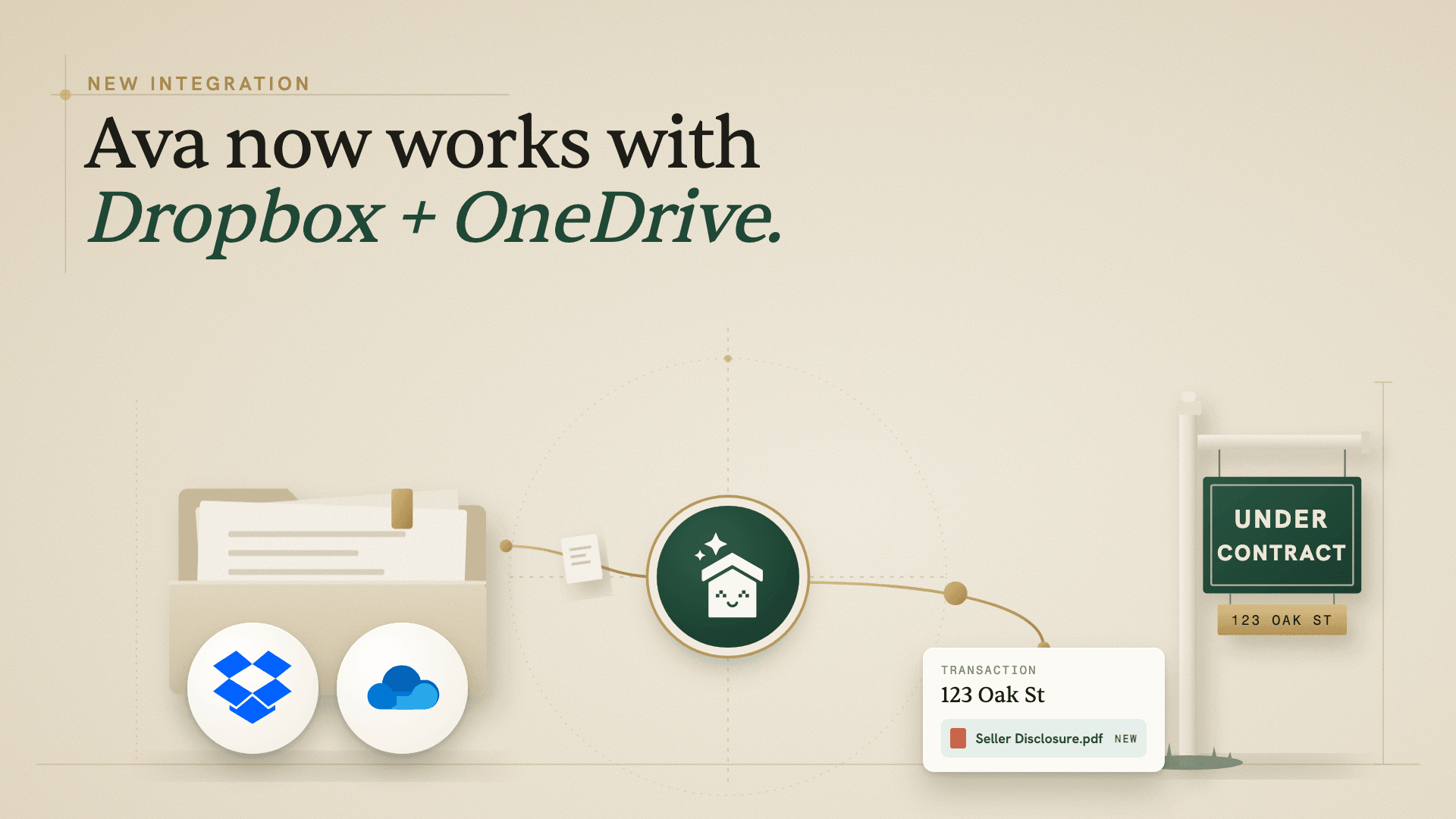
The seller disclosure for 123 Oak Street is sitting in your Dropbox, and you need it in the transaction. Instead of downloading it, renaming it, and uploading it again, you open the deal and tell Ava: “Find the seller disclosure for 123 Oak Street in Dropbox and add a copy to this transaction.” Ava finds the file, asks for your approval when needed, and the copy lands in the transaction’s files.
That is our newest integration. Ava now works with your Dropbox and OneDrive documents, so you can bring files into a deal, have Ava read them, and save copies back to your team’s folders, all by asking in the transaction chat. We’re also launching the Documents hub, a central place to find every file across your deals.
What the Dropbox and OneDrive integration does
Connecting Dropbox or OneDrive gives Ava a way to reach the documents your team already keeps there. From inside a transaction, you can ask Ava to:
- Find a document in your drive and add a copy to the transaction
- Read the document once it is in the deal and answer your questions about it
- Save a copy of a ListedKit document to the drive folder you name
Connecting your drive does not copy everything over or keep folders in sync. Nothing moves until you ask Ava or approve the transfer, and each transfer makes a separate copy, so the original stays right where it is.
How it works
Step 1: Connect your drive
Go to Settings → Integrations and connect Dropbox or OneDrive under Cloud Drive Integrations. Sign in with the account your team uses for deal files. If you connect both, you can set one as your default.
Step 2: Ask Ava in the transaction
Open the deal and tell Ava what you need in the transaction chat. Name the document, the drive, and where it should go. A few examples:
- “Find the seller disclosure for 123 Oak Street in Dropbox and add a copy to this transaction.”
- “Show me the files in my OneDrive folder for 123 Oak Street.”
- “Read the inspection report and summarize the items I should review.”
Step 3: Review and approve
When Ava needs your OK to move a file, the approval names the document, the action, and the destination. Check that all three are right and approve it, then open the file in the transaction to confirm it’s the one you wanted.
Step 4: Save copies back to your drive
When a document needs filing, ask Ava to handle that too: “Save a copy of this seller disclosure to my OneDrive folder for 123 Oak Street.” The ListedKit original stays on the deal, and the copy goes to the folder you named.
Other places you’ll find your drive
- Start a new transaction from a contract in your drive. Choose Add from cloud drive on the first upload step, and Ava reads the contract and builds the deal from it.
- Attach a drive file straight to a checklist item, like an earnest money receipt, with Add from a drive.
- Save any file to your drive from its menu with Push to drive, if you’d rather pick the folder yourself.
See it in action
Watch Karan connect Dropbox and OneDrive, bring an inspection report into a deal, have Ava summarize it, and save the purchase agreement back to the deal’s Closing folder.
Ava now works with Dropbox and OneDrive
Also new: the Documents hub

The Documents hub, in Settings → Documents, is a new central place to find and organize the ListedKit files across your workspace. Search by name, filter by deal, file type, creator, or date, and jump to the transaction a file belongs to. Your connected drives are there too, under Drives, so you can browse Dropbox or OneDrive and pull a file into a workspace folder.
Get started
Already on ListedKit? Connect Dropbox or OneDrive in Settings → Integrations, then open a transaction and tell Ava which document you need. New to ListedKit? Get Started and try it on a real deal. Your first transaction is free.